Users can print and export content from numerous points in the application. Print and export options appear in several apps, but prompt slightly different behaviors given different output selections.
Printing is available for users from the Pro, Analyst, and Viewer clients, for content loaded via the application or directly (via URL). Limited printing options are also available from natively embedded content (content embedded via code). These capabilities are device independent and will work from desktop or tablet devices. You cannot print from the mobile application.
Tip: Subscriptions are very similar to prints, as they effectively involve automated printing with a schedule and distribution mechanism. For more information, see Subscriptions.
Accessing the Print Functions
The print button typically (but not always) appears in the status bar of each app (green arrow below):

Printing is available in Model (where the Print & Export dialog is not used), Discover, Publish, Present (at runtime), and Tabulate. Printing is not available for Formulate or Illustrate.
Tip: Illustrations can be printed as part of presentations or publications.
Print & Export dialog
When printing content, the user is typically presented with a Print & Export dialog that has subtle differences based on the app and the selected output and export type:
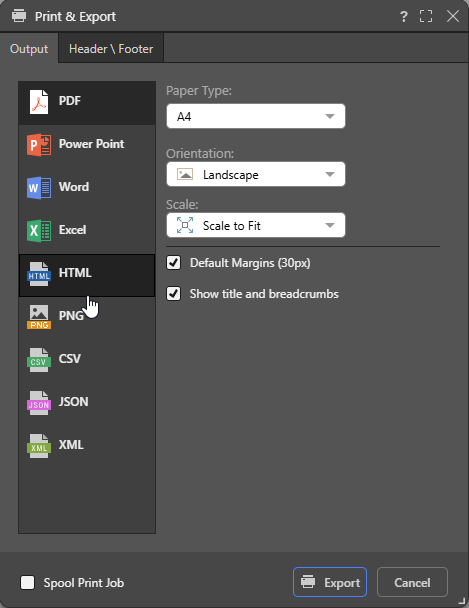
Printing from Apps
Model
When printing the summary from Model, the user is not prompted with the Print & Export dialog. The Model Flow Summary document is simply returned directly to the client as a PDF.
- Click here for more information about Printing in Model
Discover
When exporting from Discover, you can send the job to the spooler for background processing, set default or custom page margins, choose to fit content to one page or let it span multiple pages, and decide whether to maintain the aspect ratio of visuals. Headers and footers can also be included by enabling them in the General panel and configuring them in the second tab.
- Click here for more information about Printing in Discover
Publish
When printing from Publish, you are manually rendering the publication without using the scheduler ("print now"). Export settings are limited, as most print options are built into the template design. However, you’ll need to select a slice to drive the publication if slicers are configured. Like Discover, you can choose to send the job to the spooler for background processing, maintain the aspect ratio of visuals, and enable readability features based on the output type (link-backs to live data, bookmarks, and more).
- Click here for more information about Printing in Publish
Present
When printing from Present, you are manually exporting content while the presentation is running. You’ll need to select the specific part of the presentation to include. Like Discover, you can set default or custom page margins and choose whether to maintain the aspect ratio of visuals.
- Click here for more information about Printing in Present
Tabulate
When printing from Tabulate, you are exporting those parts of the tabulation that are located in your selected Visual Areas, Discovery Areas, or Print Areas.
- Click here for more information about Printing in Tabulate
Related information
Exporting to Excel
Exporting content to Excel involves a range of decisions and settings, defining how sheets are named, the retention or otherwise of styles, and what metadata is included in the output. Memory limits may also affect the output spreadsheet, changing the output to a CSV where limits are reached. For more information, see Exporting to Microsoft Excel.
Removing Value-Based Filters from Text Exports
When exporting content to Excel, CSV, JSON, or XML, there are a number of considerations that are specific to exporting content to a text file. These options include a checkbox that allows you to ignore value-filtering in the original report and export all data instead. For more information, see Removing Value-Based Filters from Text Exports.